Skip to the features
Urenboek.com
Our websites
↑

Urenboek · A look inside the application

See how little you need to enter.

See a working day recorded in the timesheet, followed by a more detailed day processed from one typed sentence.

All screens use fictional example data. You can enlarge every image. The screenshots show the Dutch interface.

Example screen: Your month by client. Fictional data in the Dutch application interface.
Fictional example dataDutch interface

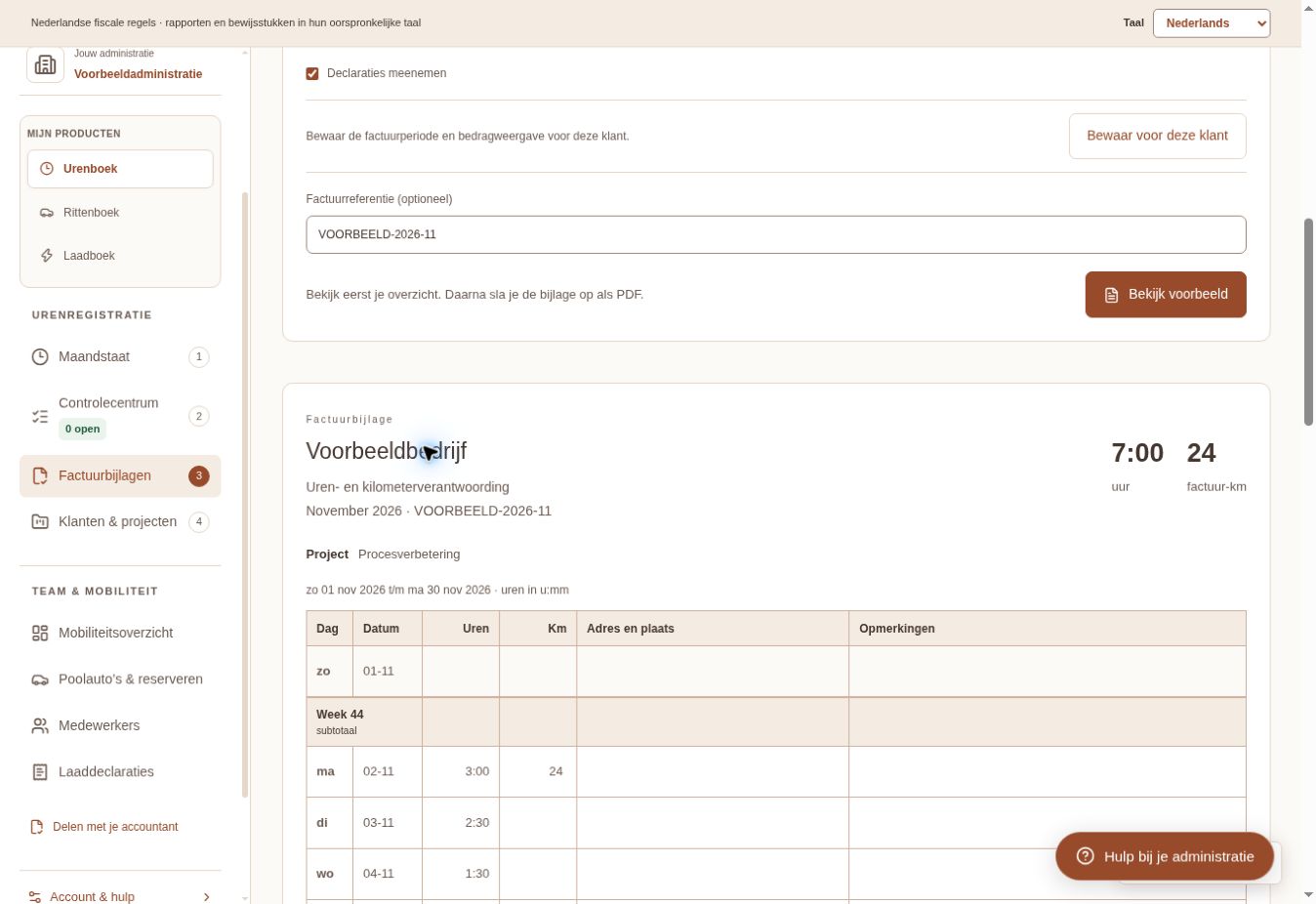
See how easy it is

Less admin. Get on with your day.

See how little work your administration needs to take.

Urenboek

0:16 · Dutch narration. Play the film whenever you like.Open the film separately ↗
Read the narration

Je werkdag zit al in je hoofd. Urenboek verwerkt je beschrijving tot urenregistratie. Zo komen je gegevens terug in de maandstaat en je factuurbijlage. Van jouw werkdag naar een overzicht voor jezelf én je klant. Kies de administratie die met je meewerkt.

How to get started

Choose your tools and subscription in one shared customer portal.

  1. Choose your package

    Choose your tools, customer type and monthly or annual billing. Review the first total payment and recurring costs.

  2. Create an account or log in

    Create an account or log in with your existing account. Confirm your email address when prompted.

  3. Review your order

    Check your package, billing details, payment period and terms before completing your order.

  4. Open your products

    Once your order is confirmed, open your chosen tools through My products in the customer portal.

Your working day in one description

Describe your working day in Urenboek or Rittenboek and check what has been recorded.

  1. Describe your working day

    Include the date, client and hours worked. For journeys, include the addresses and any private detour.

  2. Process and complete

    Process your entry and check what has already been saved. Add missing details in the Control centre; do not enter saved items again.

  3. Check hours and kilometres

    Check your hours, the actual distance travelled and the odometer readings you recorded. Also check the kilometres charged to the client: do not charge for a private detour.

Urenboek, step by step

Choose a topic and follow the steps at your own pace.

↑ Back to the short videoBack to all video guides →

Chapter 1 of 41:30

Inloggen, klanten en projecten

Open video separately ↗

This guide is in Dutch.

Read the Dutch transcript

Je uren krijgen betekenis als duidelijk is voor wie je hebt gewerkt. Hier richt je de klanten en projecten in die je straks ook in je werkdagbeschrijving gebruikt. Klik op Urenboek.com op Inloggen en open Urenboek. Meld je aan met je eigen account en controleer of de juiste administratie is geopend. Werk je met meerdere boeken, controleer dan welk boek je gebruikt voordat je gegevens invoert. We beginnen met klanten en projecten, zodat je eerste urenregel meteen bij de juiste opdracht hoort. Open Klanten en projecten en kies Nieuwe klant. Vul een herkenbare naam en eventueel een klantnummer in. Leg de begindatum van de opdracht vast. Vul een einddatum in of laat Geen einddatum aangevinkt. Houd de klant actief zolang je voor deze klant werkt. Standaardtarieven zijn optioneel; bewaar daarna je invoer. Voeg vervolgens de projecten toe waarvoor je werkt. Koppel ieder project aan de juiste klant en kies een herkenbare naam. Bij handmatig ingevoerde uren is een project optioneel. Een afgerond project kun je inactief maken, zodat de keuzelijst overzichtelijk blijft. Bestaande urenregels behouden hun oorspronkelijke klant- en projectnaam. Je gebruikt deze herkenbare klant- en projectnamen straks opnieuw wanneer je je werkdag beschrijft. Controleer ook dan bij welke opdracht de gegevens terechtkomen. Je klanten en projecten staan klaar. Gebruik herkenbare namen wanneer je je werkdag beschrijft. Ga verder met Uren invoeren en je maandstaat bijhouden om je eerste regels vast te leggen en de totalen te volgen.

Open the full transcript ↗

See what you can record and share with the tools. Follow the steps below to get started and choose a subscription.

Examples use fictional data.

Choose your own tour

What would you like to see?

15 features explained in short steps. Choose a section or search for a topic.

15 of 15 features

01Your overview

Your month by client

Choose a client tab to see hours, invoice kilometres, Address and city, and Notes in one monthly sheet.

  • Every calendar day remains visible; time is shown as hours:minutes.
  • Check the weekly and monthly totals. Add a note such as Leave to a day, even when no hours are entered.
  • Without positive applicable kilometres, the kilometre, address and place cells stay empty.

Non-billable hours remain in your own records, but are excluded from billable hours on the client statement.

Back to the overview
Urenboek.comFictional example data
Example screen: Your month by client. Fictional data in the Dutch application interface.Enlarge example
Your month by clientDutch interface
02Record your work

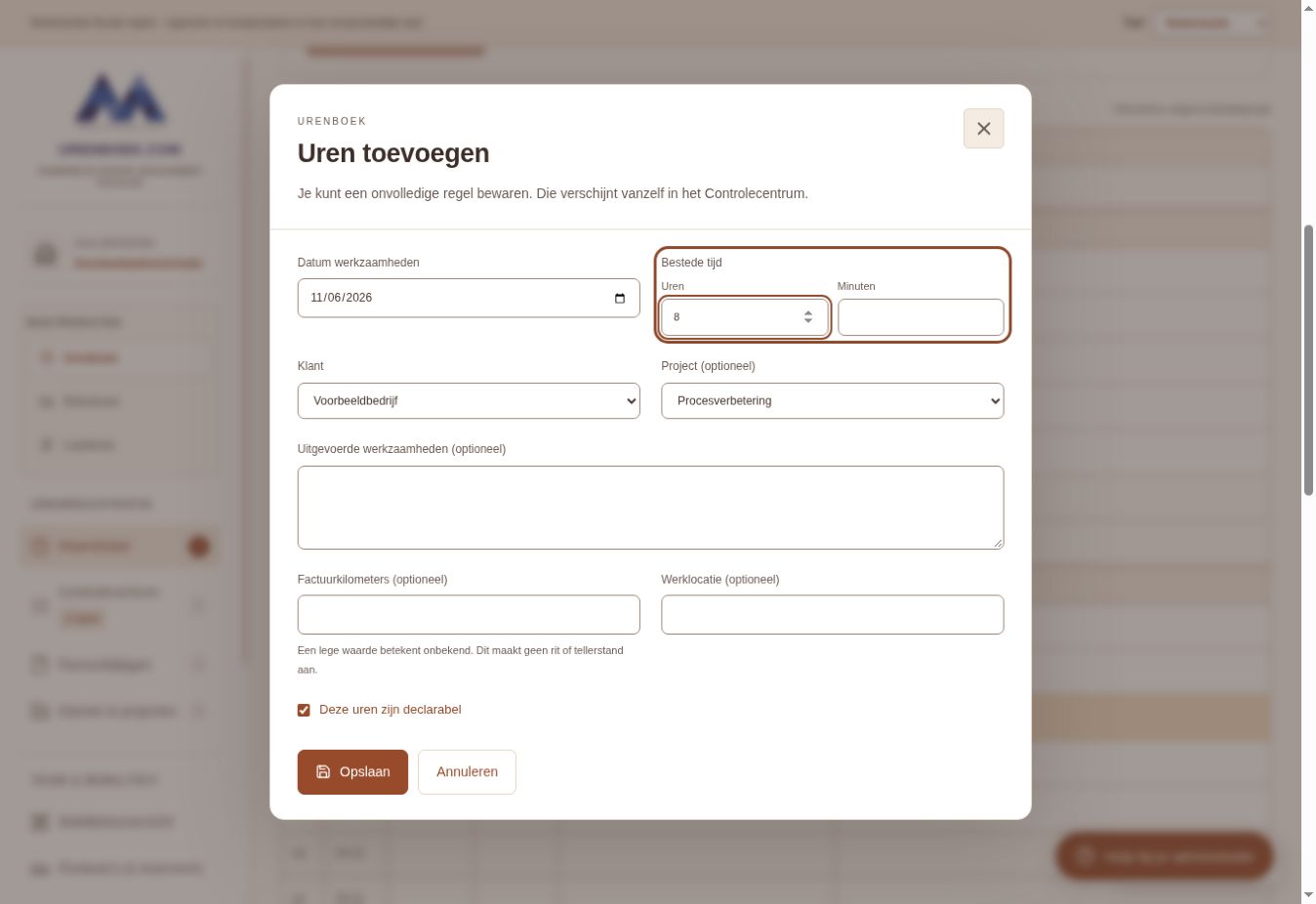
Choose the day. Enter 8. Save.

Click an empty hours cell in your client’s monthly timesheet. For this working day, only the number of hours needs entering.

  • The date and client are already selected from the chosen day in the monthly timesheet.
  • Enter 8 under Hours and choose Save. Minutes can stay empty.
  • A project, work description, invoice kilometres and work location are optional.

The project and billable setting are already correct in this example. Check the result after saving. Invoice kilometres do not create a trip or an odometer reading.

Back to the overview
Urenboek.comFictional example data
Example screen: Choose the day. Enter 8. Save. Fictional data in the Dutch application interface.Enlarge example
Choose the day. Enter 8. Save.Dutch interface
03Check & complete

Find and correct recorded hours

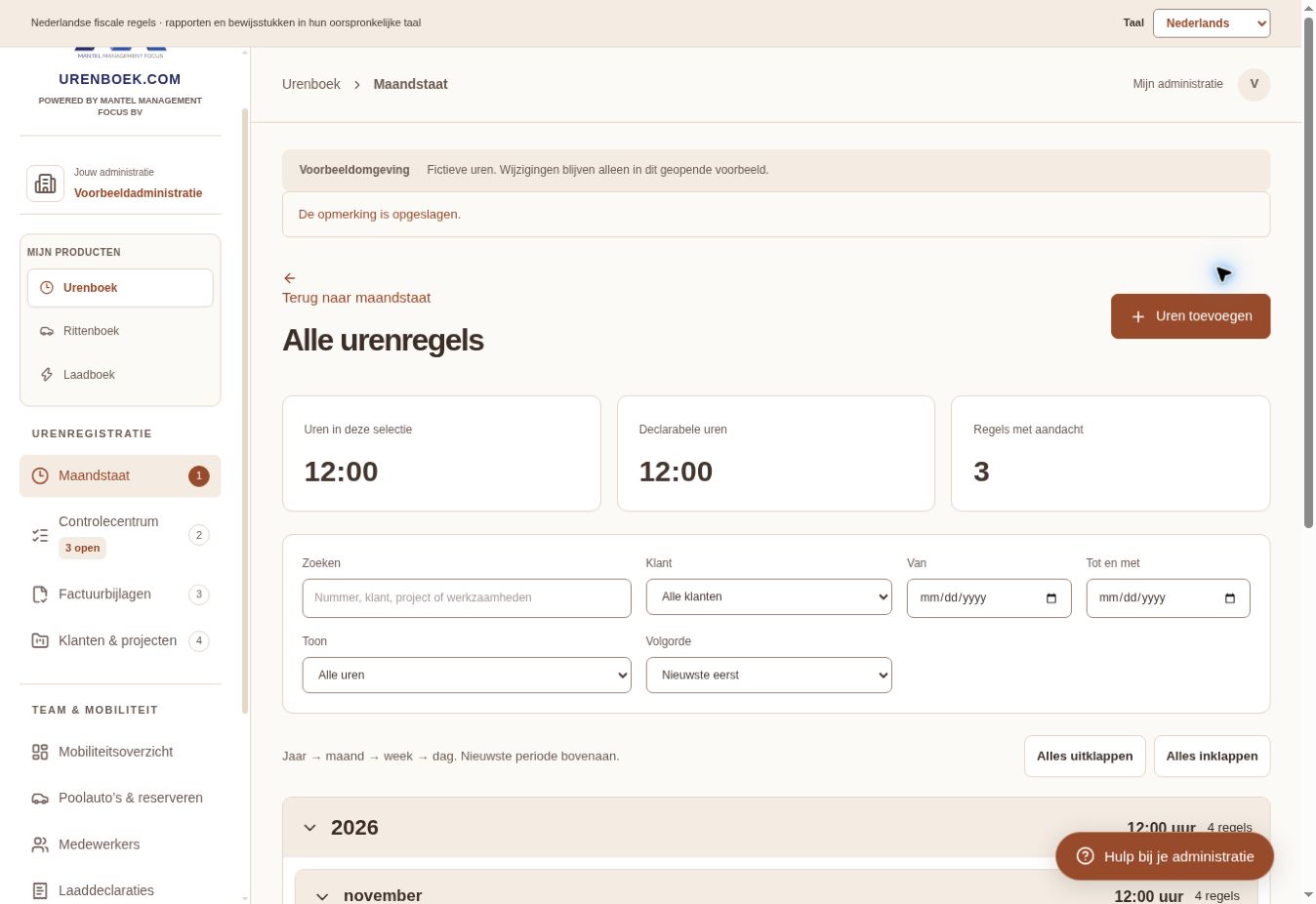
Open All time entries to find your records. Narrow the selection and edit an existing entry.

  • Search by number, client, project or work description.
  • Filter by client, period and billable hours.
  • Give a reason when correcting an entry.

Incorrect or duplicate entries can be voided. The original details and reason remain in the change history.

Back to the overview
Urenboek.comFictional example data
Example screen: Find and correct recorded hours. Fictional data in the Dutch application interface.Enlarge example
Find and correct recorded hoursDutch interface
04Clients & projects

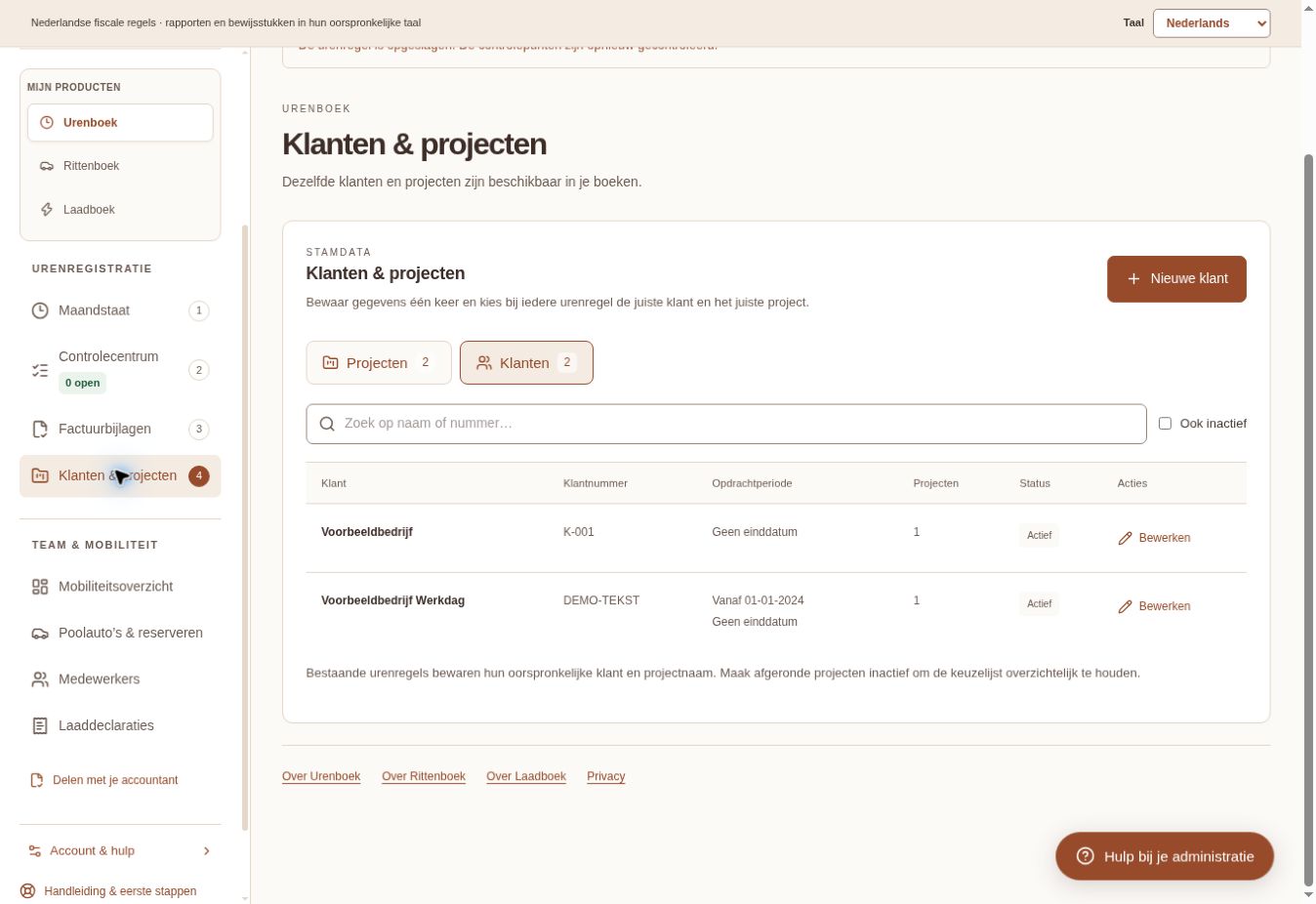
Manage clients, assignment periods and rates

An active client appears in the monthly timesheet when the assignment period overlaps that month. Earlier hours and journeys remain stored.

  • Save a recognisable client name and an optional client reference.
  • Set start and end dates, or select No end date.
  • Enter hourly and kilometre rates in EUR excluding VAT, with up to four decimal places.

A blank rate is unknown; zero is an explicit zero rate. Entering a rate does not automatically show amounts on the client statement.

Back to the overview
Urenboek.comFictional example data
Example screen: Manage clients, assignment periods and rates. Fictional data in the Dutch application interface.Enlarge example
Manage clients, assignment periods and ratesDutch interface
05Clients & projects

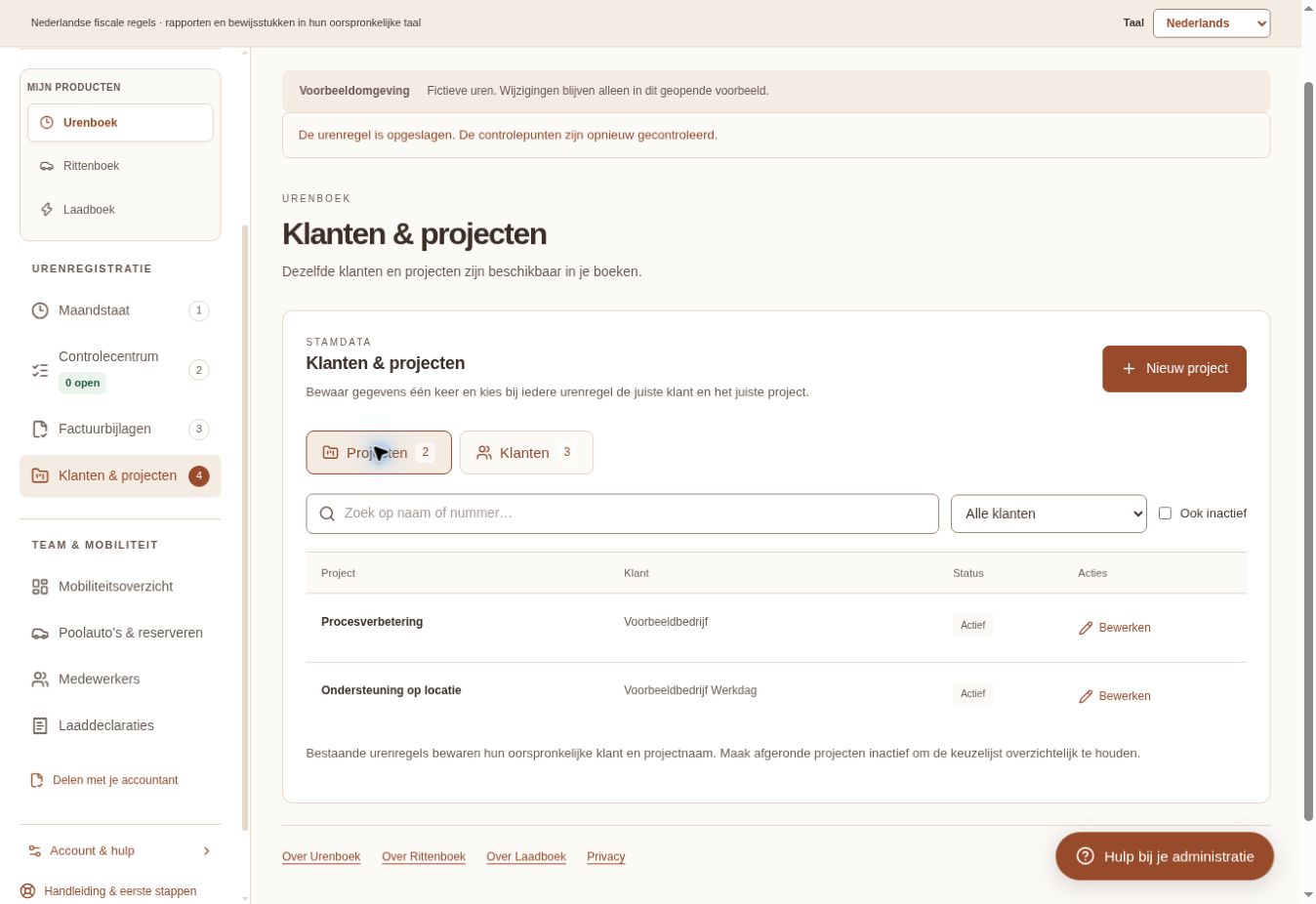
Keep projects with the correct client

Create recognisable projects. Client project counts follow the same active or inactive selection as the visible list.

  • Search by client or project name.
  • Mark projects as active or inactive.
  • Use Include inactive to include finished projects.

With access to Rittenboek, both products use the same clients and projects. Switching products does not itself grant extra access.

Back to the overview
Urenboek.comFictional example data
Example screen: Keep projects with the correct client. Fictional data in the Dutch application interface.Enlarge example
Keep projects with the correct clientDutch interface
06Record your work

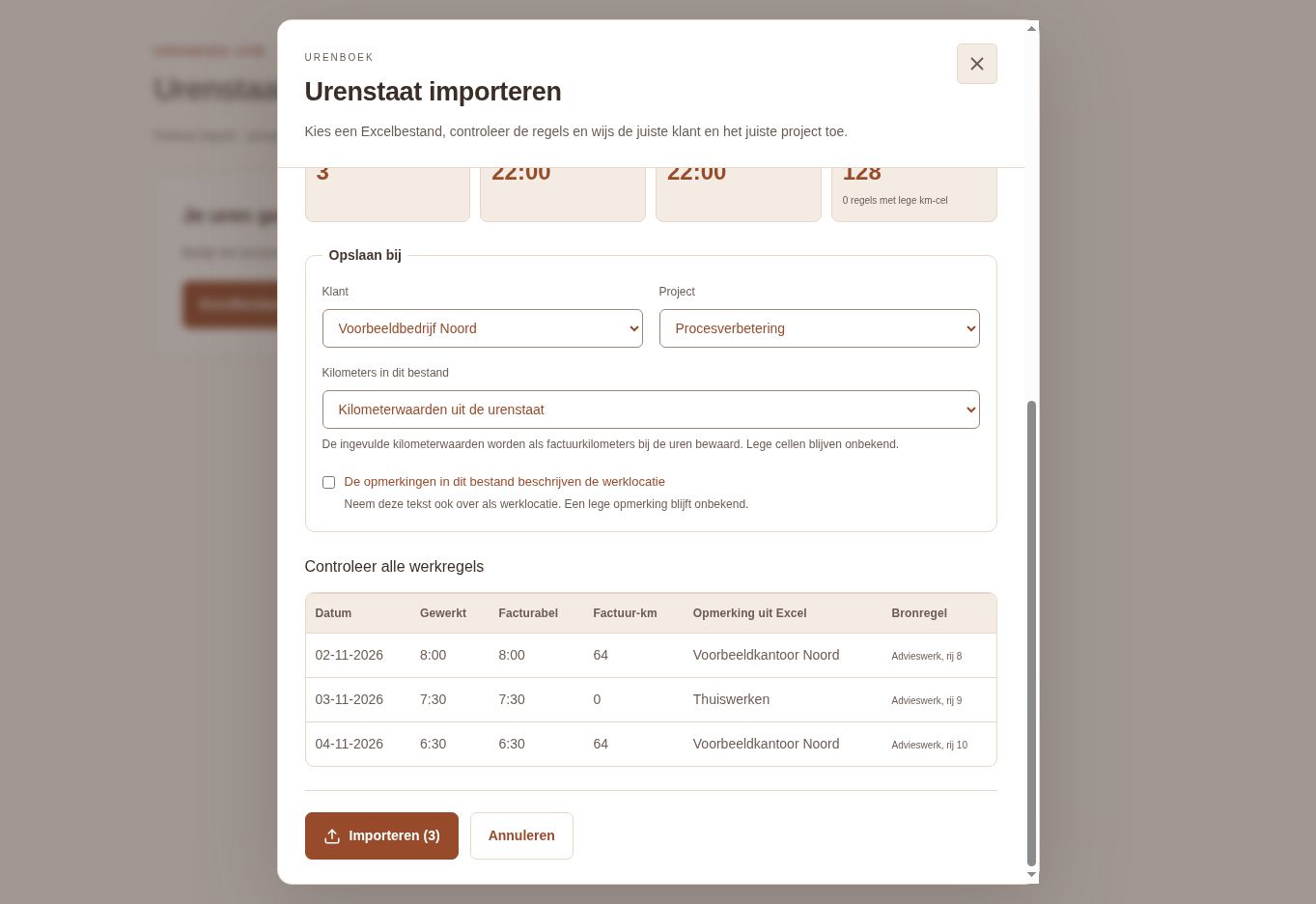
Import one checked Excel worksheet

Choose a supported XLSX timesheet, one worksheet, and the existing client and project. Check the proposed entries before importing.

  • Check work entries, hours, kilometres and how comments will be used.
  • After a confirmed save, the correct client opens at the source month.
  • Recognised source rows that were imported earlier are skipped.

The file may be up to 10 MB. Not every Excel layout is supported. Reopen the same file to import another worksheet.

Back to the overview
Urenboek.comFictional example data
Example screen: Import one checked Excel worksheet. Fictional data in the Dutch application interface.Enlarge example
Import one checked Excel worksheetDutch interface
07Check & complete

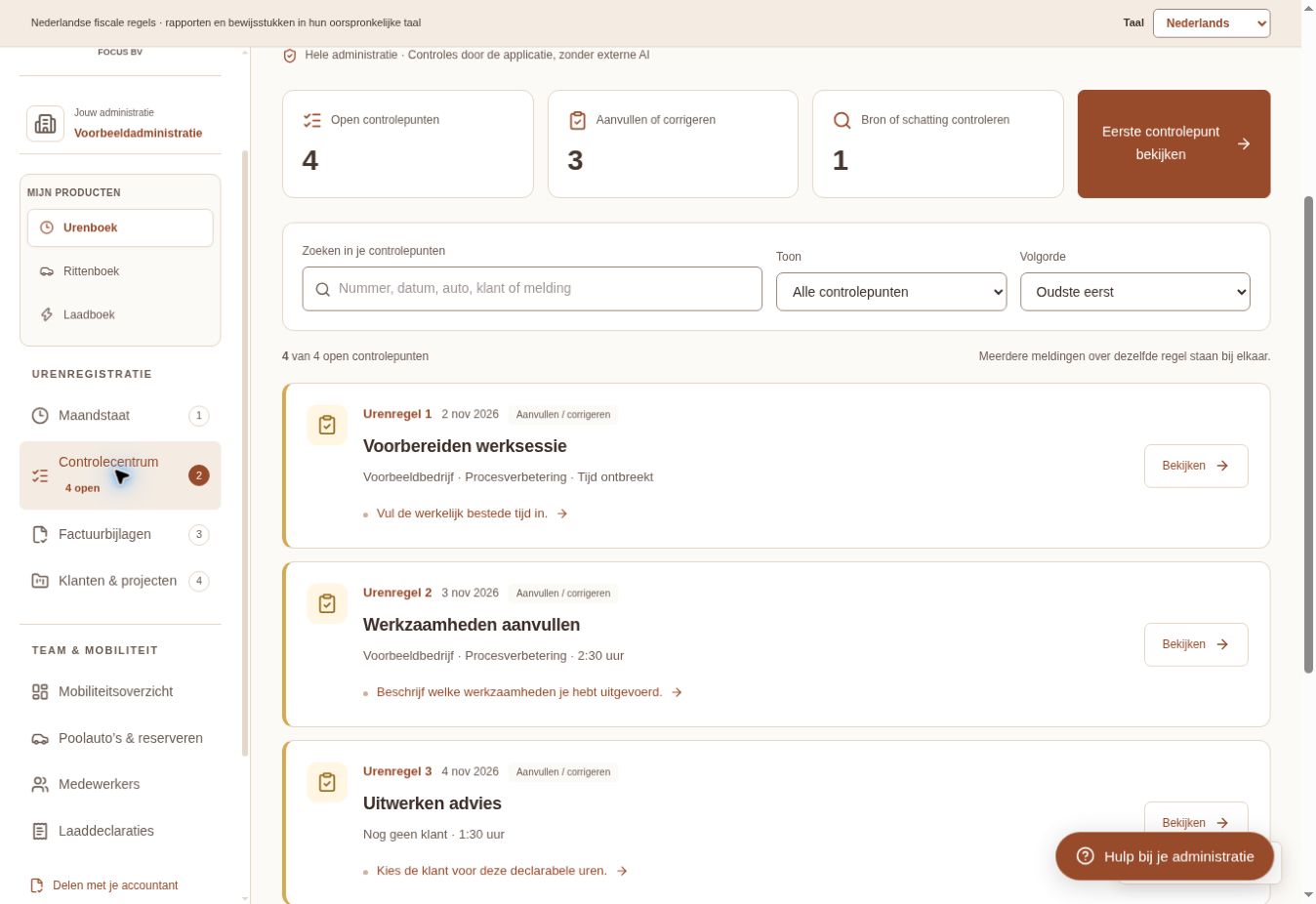
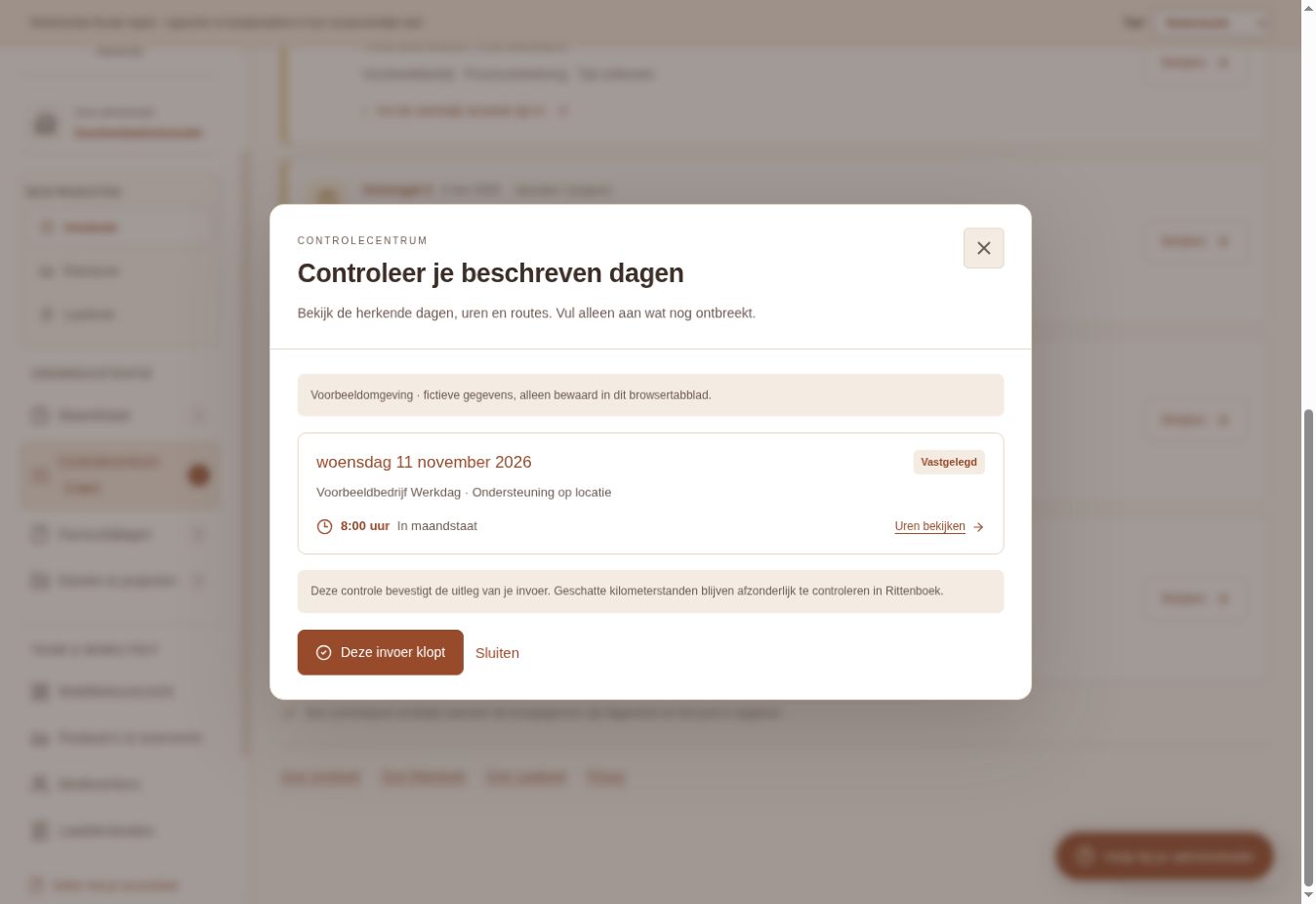
Resolve review items in Control centre

The Review Centre brings attention points together and takes you to the relevant information. See what needs completing or checking, then move on.

  • Identify the source entry by its number, date and work description.
  • Complete the details and use Save and next.

Zero open review items means the source checks found nothing. Check for yourself that all work actually performed has been recorded.

Back to the overview
Urenboek.comFictional example data
Example screen: Resolve review items in Control centre. Fictional data in the Dutch application interface.Enlarge example
Resolve review items in Control centreDutch interface
08Agreements & client statements

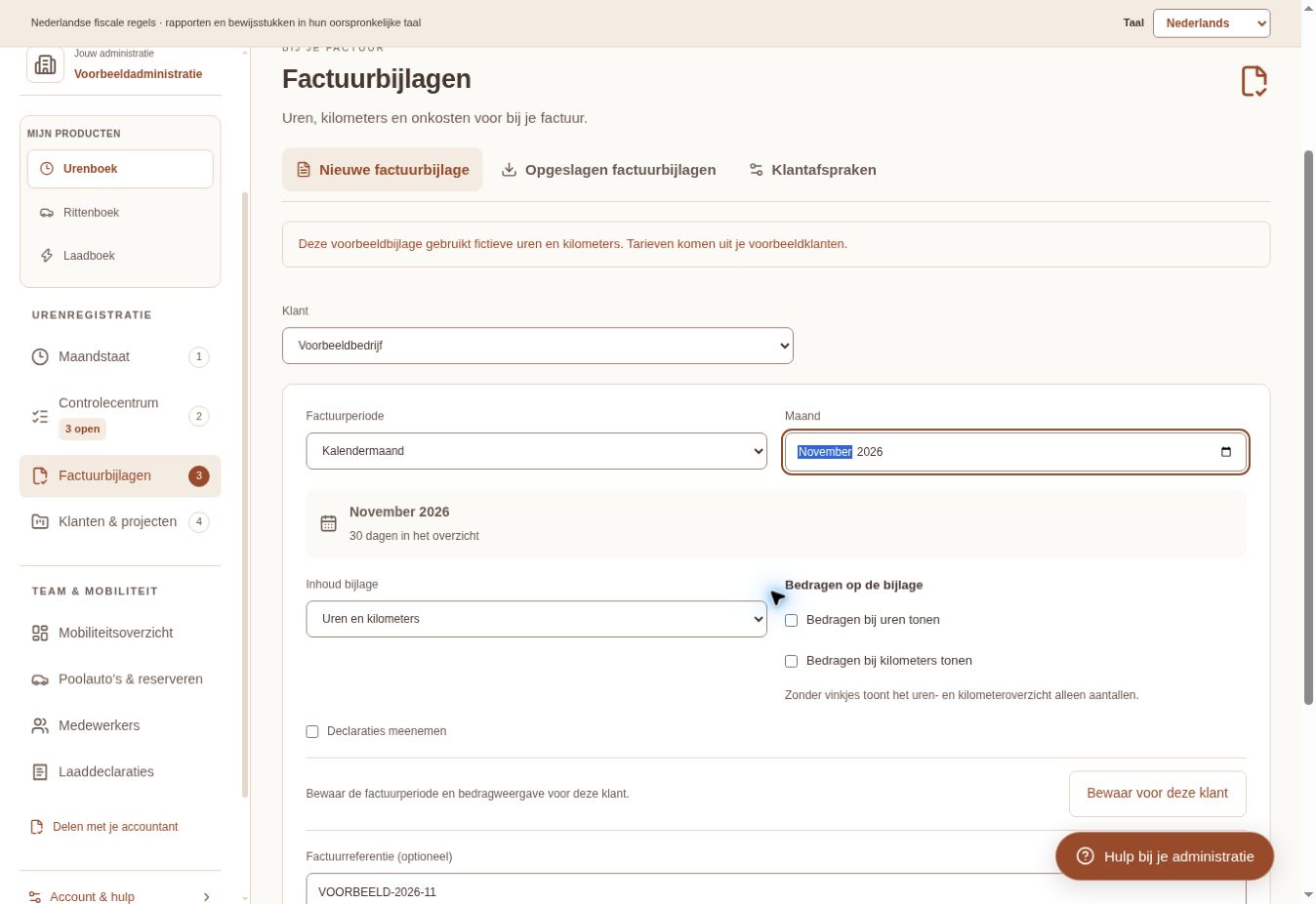
Choose the correct client period

Choose the client, reporting period and content. You can save the preferred period and week start for each client.

  • A calendar month follows that month’s actual first and last dates.
  • A week has seven days and a chosen starting day, Monday by default.
  • Four weeks means 28 consecutive days from the first start date and selected period number.

The screen shows the start and end dates used. Weekly subtotals include only days within the selected period.

Back to the overview
Urenboek.comFictional example data
Example screen: Choose the correct client period. Fictional data in the Dutch application interface.Enlarge example
Choose the correct client periodDutch interface
09Agreements & client statements

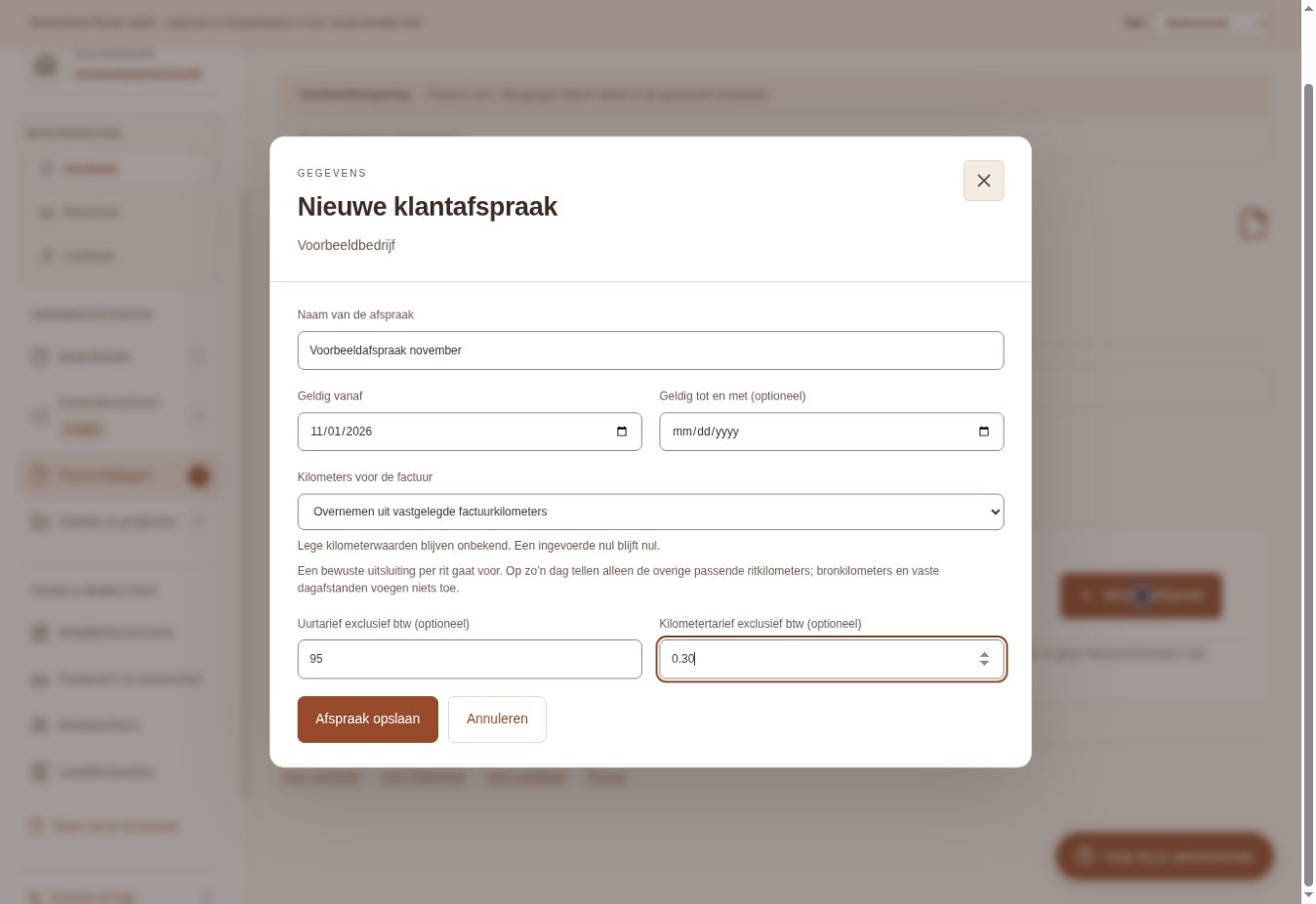
Set the kilometre agreement and validity

Save how a client’s kilometres are calculated and the period for which the agreement applies.

  • Choose invoice kilometres from source entries or business journeys from Rittenboek.
  • Optionally use a fixed distance per confirmed day on site or the highest applicable daily value.
  • A valid explicit agreement rate takes precedence over the client’s default rate.

Journey sources require Rittenboek access. Agreements do not alter actual odometer readings; previously saved client statements retain their own content and rates.

Back to the overview
Urenboek.comFictional example data
Example screen: Set the kilometre agreement and validity. Fictional data in the Dutch application interface.Enlarge example
Set the kilometre agreement and validityDutch interface
10Agreements & client statements

Choose each type of amount separately

Check the calendar view and totals before saving the client statement.

  • Show amounts for hours is off by default.
  • Show amounts for kilometres is also off by default and works independently.
  • The preview, PDF and CSV follow both choices; expenses have their own selection and amount summary.

Entering a rate does not enable an amount checkbox. The statement supports your own invoice; Urenboek does not create or send an invoice through this feature.

Back to the overview
Urenboek.comFictional example data
Example screen: Choose each type of amount separately. Fictional data in the Dutch application interface.Enlarge example
Choose each type of amount separatelyDutch interface
11Agreements & client statements

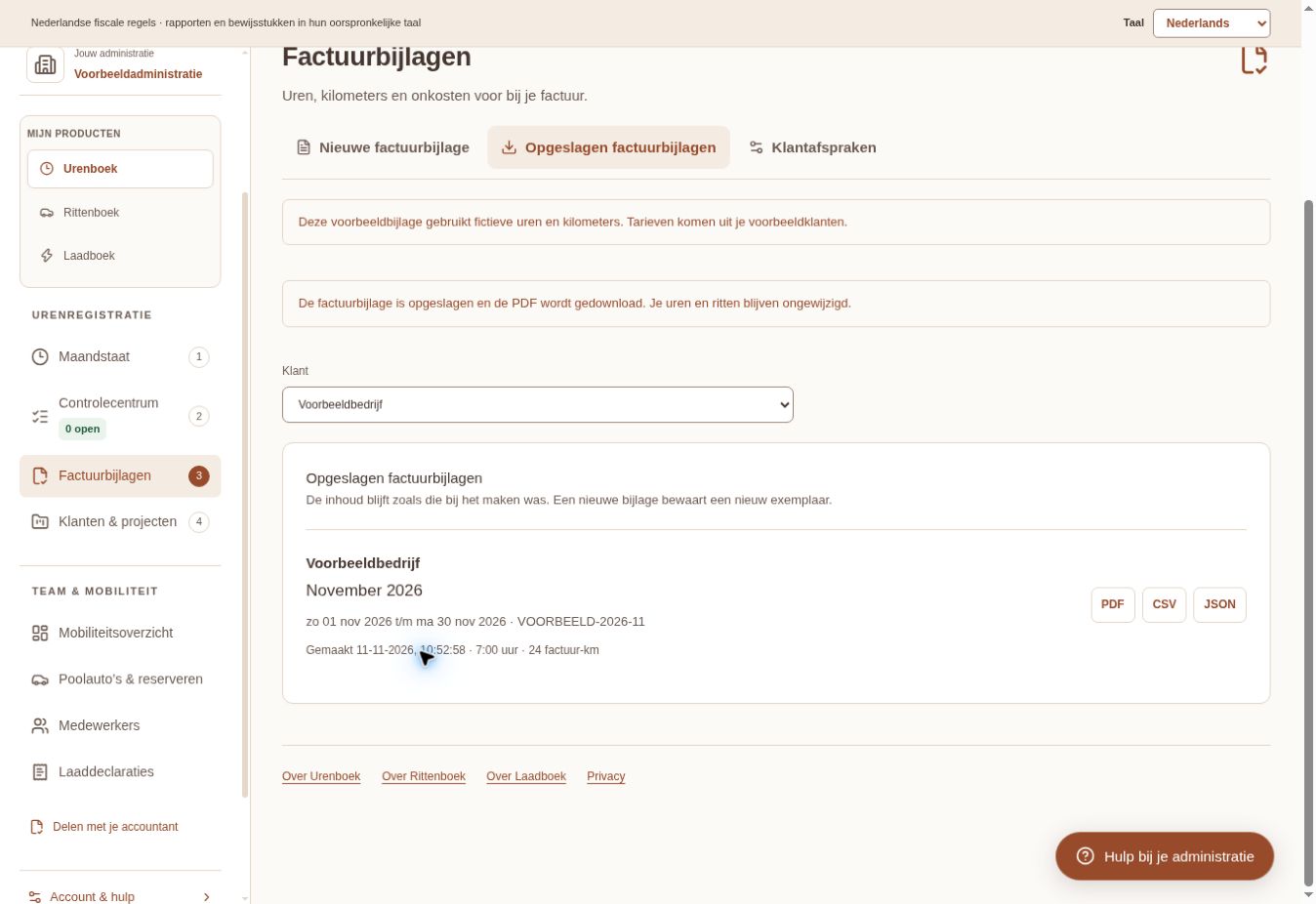
Save and download the same statement

A saved client statement retains the checked content and rates from that moment, even after later changes.

  • Download the saved PDF for your own invoicing process.
  • Download the CSV for further work in a spreadsheet.
  • If needed, download the same saved data as JSON.

Recipients need no account or subscription to read the shared PDF.

Back to the overview
Urenboek.comFictional example data
Example screen: Save and download the same statement. Fictional data in the Dutch application interface.Enlarge example
Save and download the same statementDutch interface
12Record your work

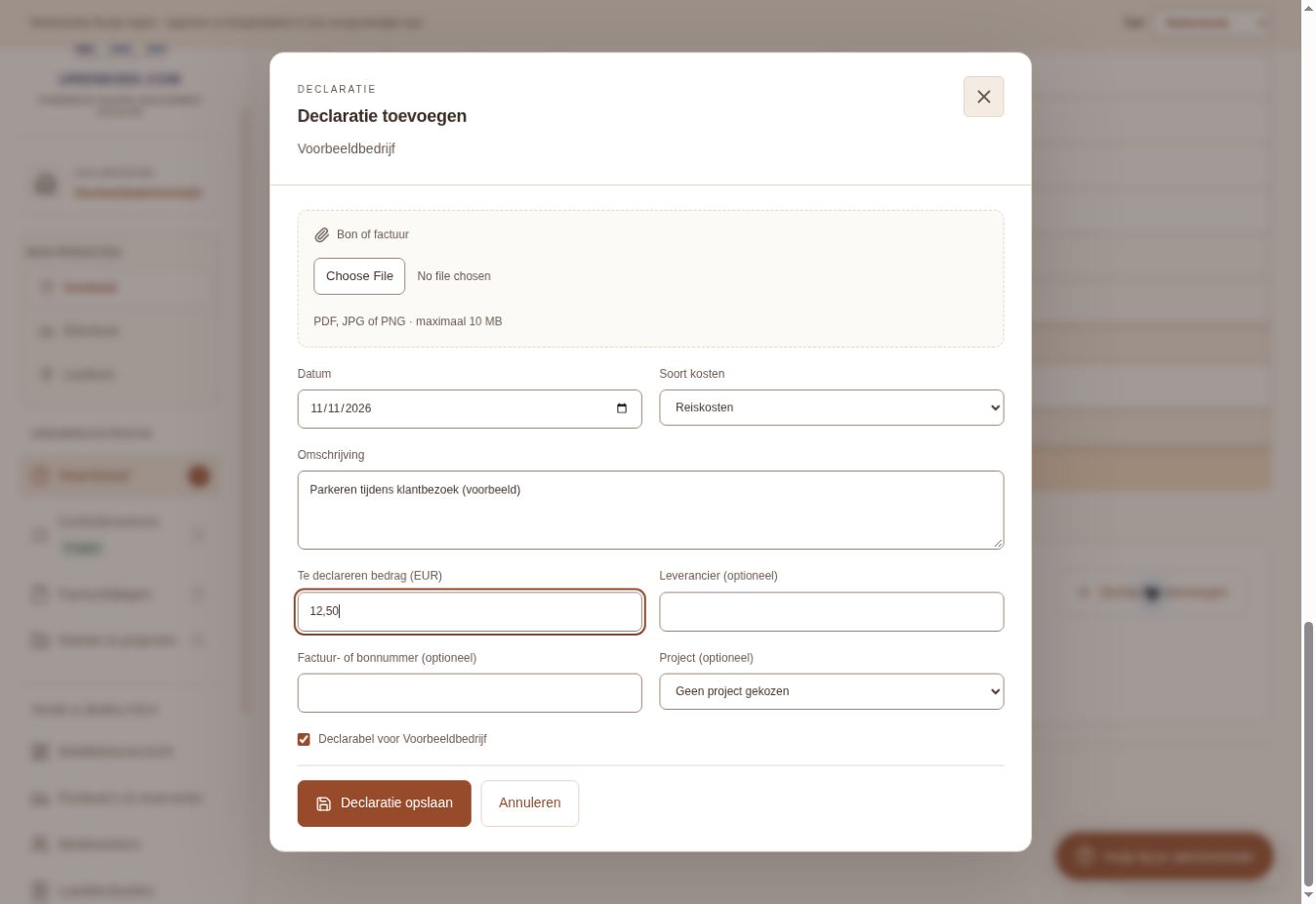
Check the receipt for your expense

A receipt or invoice is required to save an expense. Link it to a client, date and optional project.

  • Add a PDF, JPG or PNG of up to 10 MB per file.
  • Check and correct the suggested description, supplier, date and amount.
  • Select expenses separately for their amount summary on the client statement.

Document recognition uses no external AI provider and does not guarantee correct entries. The original supporting document is kept in your own records.

Back to the overview
Urenboek.comFictional example data
Example screen: Check the receipt for your expense. Fictional data in the Dutch application interface.Enlarge example
Check the receipt for your expenseDutch interface
13Check & complete

Find guidance and the right source entry

Type your day or week in Dutch, including the client, hours worked and any trips. The app processes complete information. You check the result and fill in only missing details.

  • Search by number, date or description.
  • Open the source entry you want to check or complete.
  • Valid, complete hours and trips are processed within the products you can access.

Process my input saves valid, complete information. Check the result and complete open drafts in the Review Centre. Processing trips requires Rittenboek; processing hours requires Urenboek. You use only the products in your chosen package.

Back to the overview
Urenboek.comFictional example data
Example screen: Find guidance and the right source entry. Fictional data in the Dutch application interface.Enlarge example
Find guidance and the right source entryDutch interface
14Record your work

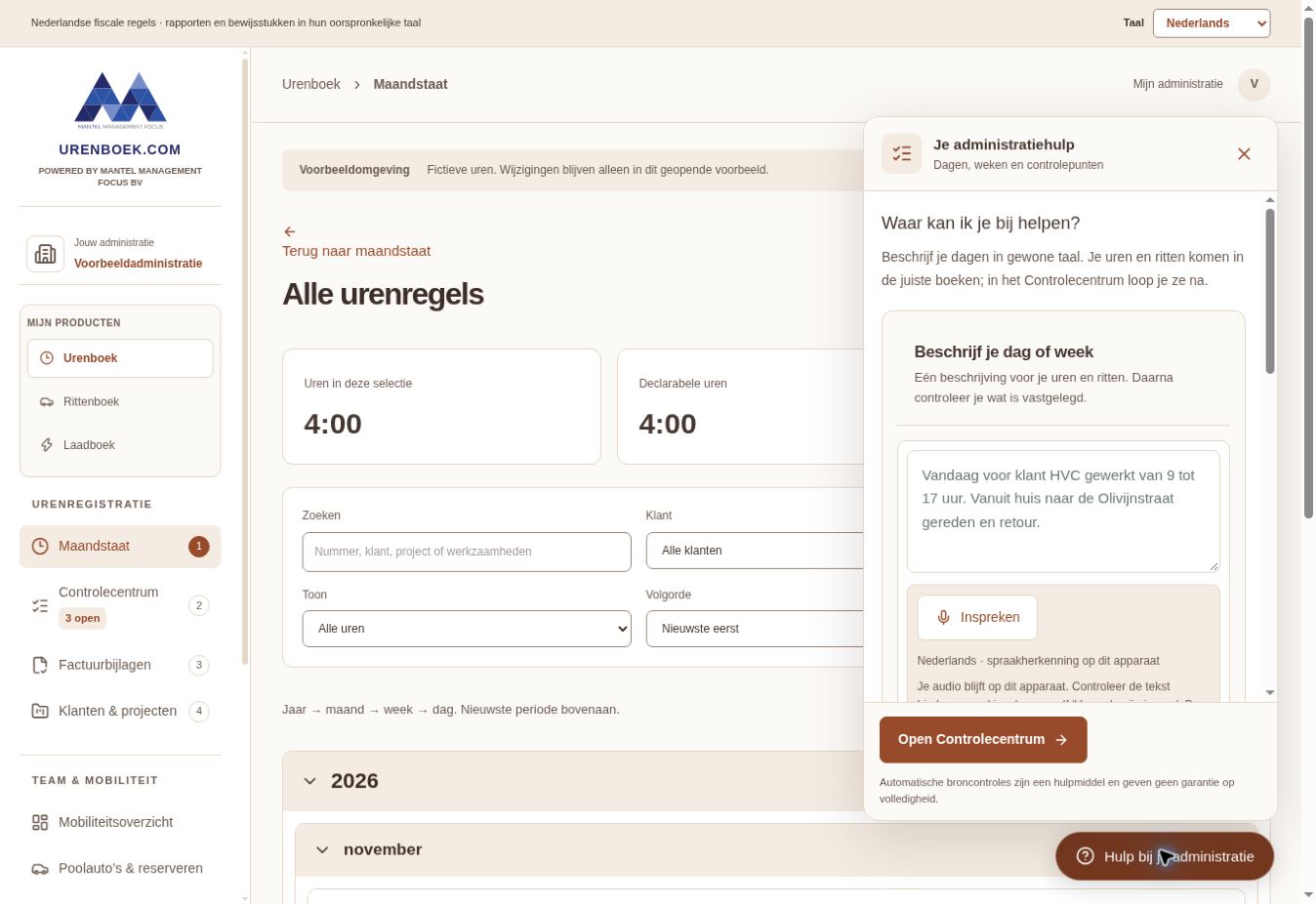
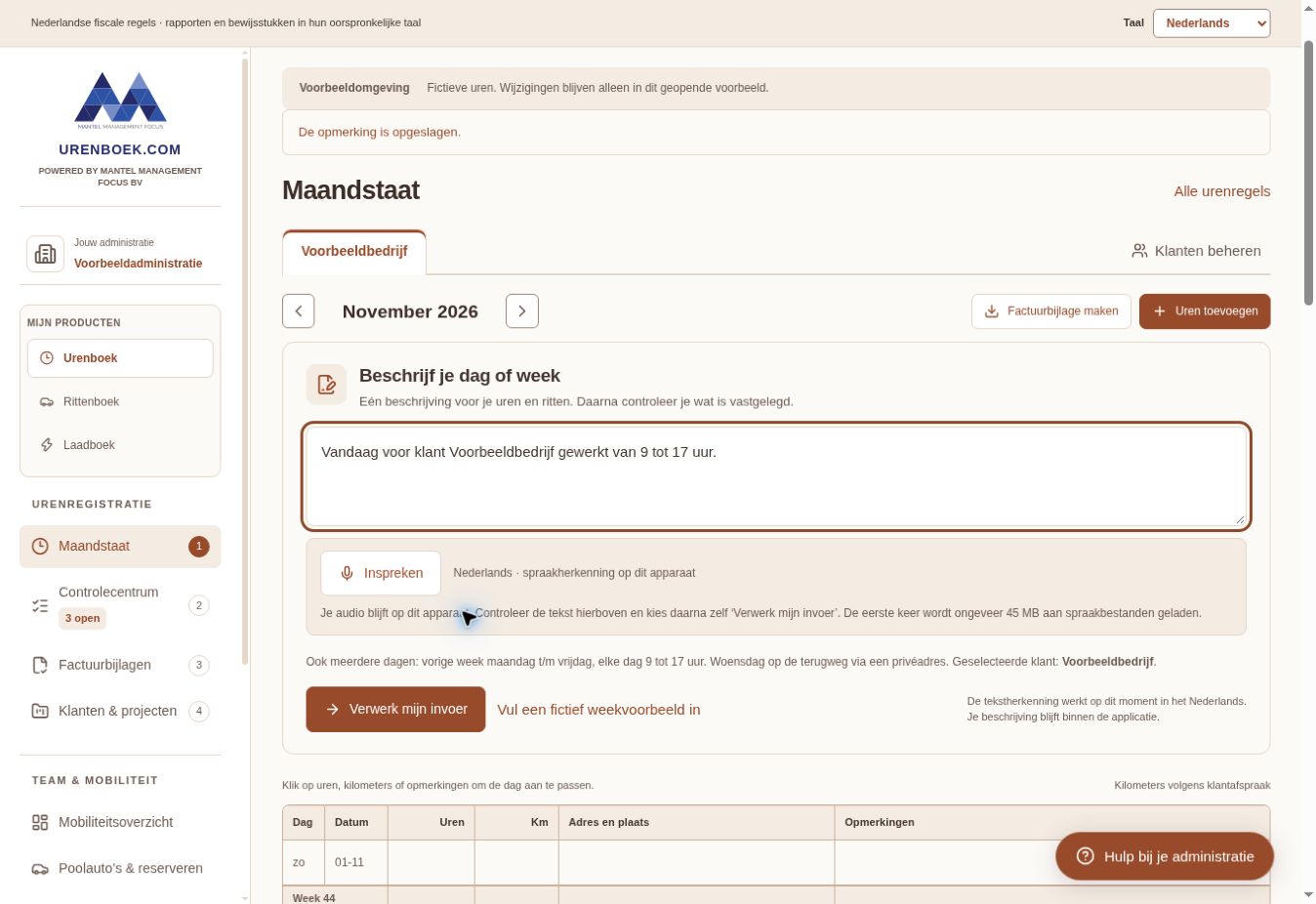
One short description. The app processes it.

Type your day or week in Dutch, including the client, hours worked and any trips. The app processes complete information. You check the result and fill in only missing details.

  • Include who you worked for, when and for how long, and which trips you made.
  • Valid, complete hours and trips are processed within the products you can access.
  • If something is missing or unclear, that part remains a draft in the review items.

Short descriptions are supported in Dutch. You can edit the text before processing it. Your description is processed within the application, without an external AI provider. You can edit the text and choose when to process it.

Back to the overview
Urenboek.comFictional example data
Example screen: One short description. The app processes it. Fictional data in the Dutch application interface.Enlarge example
One short description. The app processes it.Dutch interface
15Check & complete

You stay in control.

Process my input saves valid, complete information. Check the result and complete open drafts in the Review Centre.

  • Read the text before processing it.
  • Check the client, project, time, trip details and actual odometer readings.
  • Complete any missing information and confirm that your input is correct.

Processing trips requires Rittenboek; processing hours requires Urenboek. You use only the products in your chosen package.

Back to the overview
Urenboek.comFictional example data
Example screen: You stay in control. Fictional data in the Dutch application interface.Enlarge example
You stay in control.Dutch interface

Does this fit your administration?

Choose the combination you need.

Choose the tools that fit your work and compare the plans.

View the plans

Explore the other demos

Laadboek.com Rittenboek.com

Fictional example data · Dutch interface

Open image ↗
Back to top